Studio 1 Web Design
Visit our partner site where we offer logo
design, Los Angeles web design and
search engine optimization services.
  Web Design   Web Hosting   Photoshop Tutorials   Free Fonts   Featured Clients   Book Store  
 
Photoshop Tutorials - Free Fonts
[Home]
[Store]
[Search]
[Sitemap]
[Newest Pages]
[Read Me First!]
[Photoshop Tutorials]
[Canvas Tutorials]
[Corel Tutorials]
[Quark Tutorials]
[Illustrator Tutorials]
[FreeHand Tutorials]
[Drawing Basics]
[Porting Files]
[Free Fonts]
[Font Tutorials]
[Misc Tutorials]
[Animation]
[About Mike]
[Guestbook]
[Gallery]
[Related Sites]
[Resource Directory]
[Add Your URL]
[Downloads]

 
California Home Loans
Hard Money Lenders
Laser Hair Removal
Mailing Lists
Mesotherapy
Private Money Loan
 
    Intermediate  
 
  Halo Text Effect in Photoshop®
Part Two
Buy Photoshop Software!
Books on Photoshop
Photoshop Training CDs

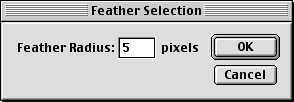
6. Next click Select > Feather. Enter an amount for the feather radius. In this case I chose to feather the selection 5 pixels. Click "OK" when done.
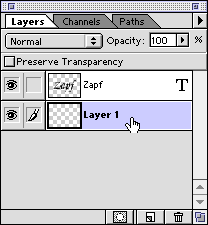
7. We want to use this selection on Layer 1 so click this layer in the Layers palette to activate it.
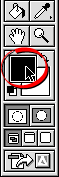
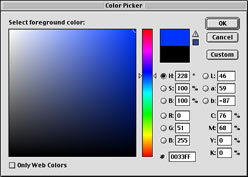
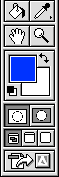
8. Click the foreground color selection box in the Toolbox (below left). This will activate the Color Picker (below center). Pick a color and click "OK" to close the dialog. In this case I picked a blue color. The foreground color selection box will now display the new foreground color (below right).

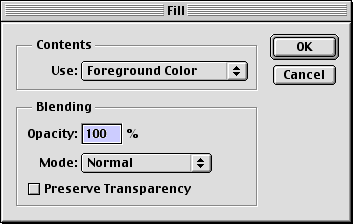
9. Next, click Edit > Fill and choose "Foreground Color" in the dialog. Click "OK" when done.
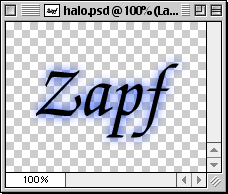
10. You can see the effect of the fill in the document window (below left) and as a finished image (below right).

 
  Previous   Home    Contact Mike   Related Sites    Next Copyright © 1998 - 2007 Mike Doughty, All Rights Reserved Legal Notices
Page Last Revised: October 14, 2007
Privacy Policy


Hard money lenders can arrange a private money loan or hard money loans with fast approval!