|
|
Using
a Matte Color In GIF Images
With Transparent Backgrounds |
 |
|
|
|
|
|
|
A tutorial for Adobe® ImageReady™
or Macromedia® Fireworks®
You may find that when you create a transparent GIF
image with objects having anti-aliased edges that the
image will display fine on a web page with a white background
but not on one with a colored background. Most image
editing software will use white for the default matte
color unless otherwise specified. The anti-aliased pixels
will show up as an unwanted halo around the object in
the image when it is displayed over a colored background.
The cure for this is to create the GIF using a background
matte color that is identical to the color over which
the transparent GIF will be displayed. The images below
illustrate the point.
Transparent GIF of an
anti-aliased letter "g" over a white background.
|
|
The same transparent
GIF over a colored background. |
|
Transparent GIF (that
uses a matte color) over a colored background.
|
 |
|
|
|
 |
How To Make GIF Images With a Matte
Color
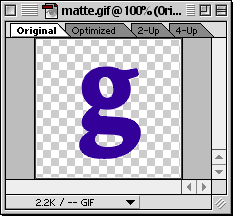
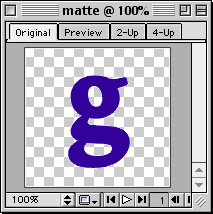
1. Shown below is a view of an opened image in the
document window:
| ImageReady |
Fireworks |
|
|
|
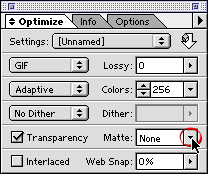
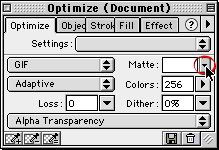
2. Below is a view of the Optimize palette in each
program (Macromedia refers to palettes as "panels").
Click the small triangle next the the word "Matte:"
in the palette (circled below).
| ImageReady |
Fireworks |
|
|
|
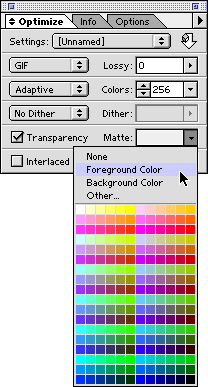
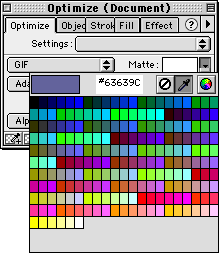
3. Select the matte color using the one of the color
pickers.
| ImageReady |
Fireworks |
|
|
|
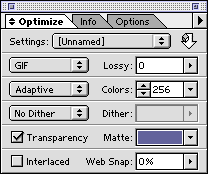
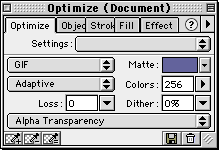
4. The palette will display a small color swatch of
the matte color to be used.
| ImageReady |
Fireworks |
|
|
|
5. Once the Optimize palette has been setup, simply
click File > Save Optimized As... (ImageReady)
or File > Export (Fireworks) to create the
GIF file.
|

