Photo Retouching with Photoshop®
Levels Adjustment - Part 2A
This is the second tutorial on using the Photoshop
Levels Adjustment to correct tonal values. The Levels
Adjustment function in Photoshop can be used in a number
of ways. Like the previous
tutorial, this example explores
another way. This time we will make the Levels Adjustments
by manually adjusting the Input Levels.
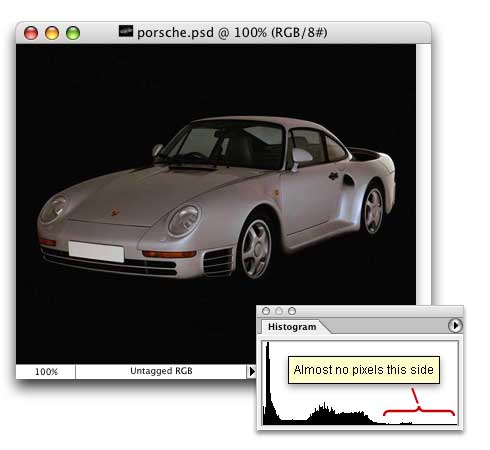
1. This photo is slightly underexposed. When you look
at the histogram, you can see that the right side of
the graph is nearly flat. There are almost no pixels
on the "light" end of the graph. Please check
the previous tutorial for
an explanation of the Histogram Palette. Like the previous
tutorial, we want to add an Adjustment Layer to
make the Levels Adjustment. Click Layer > New
Adjustment Layer (or Layer > New > Adjustment
Layer for older versions of Photoshop). Give the
layer a name or accept the default name it gives you
and click the "OK" button.
2. Below is a Flash Video showing you how
to make the Levels adjustment.
The small white triangle on the right end of the bottom
of the histogram is dragged towards the center of the
graph. Make sure the Preview checkbox is checked so
you can see the effect of the adjustment as you make
it. Please notice that as you drag the white triangle
to the left that the gray triangle in the center moves
a proportional distance towards the left as well. After
you have made the adjustment, click the "OK" button.
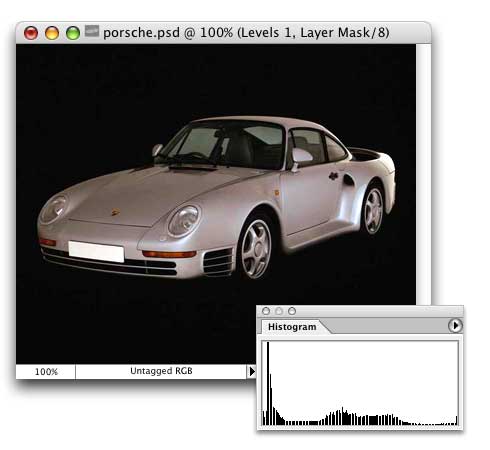
3. The result is a bit more exposure. The tonal values
are more balanced. Also please note the histogram. The
pixels have been redistributed.