|
|
| |
|
|
 |
| |
| |
|
Basic |
|
| |
|
|
Working
With Layers In Photoshop®
Part Five |
 |
|
|
|
|
|
|
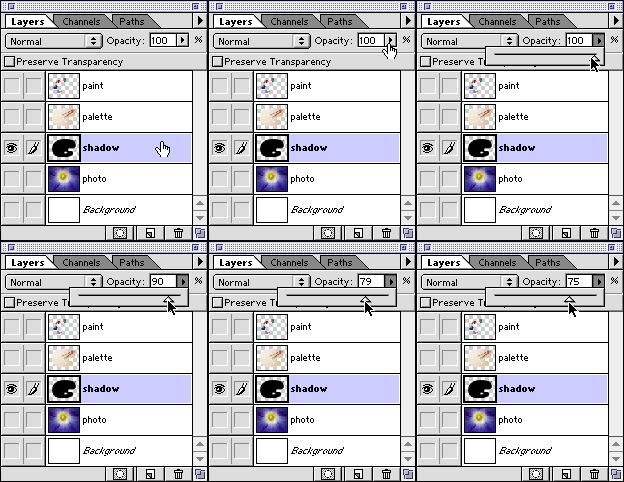
10. You can adjust a layer's opacity by dragging the
Opacity slider (below left). Alternately, you can simply
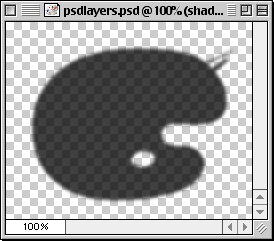
enter a value for the opacity. In the example below,
the shadow layer is made to appear more transparent
by setting its opacity to 75% (below right).
Layer Blending Modes
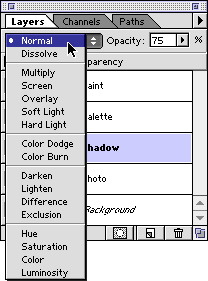
Each layer has a blending mode. A blending mode is
the way layer pixels blend with the layers beneath it.
The default blending mode is "Normal", but
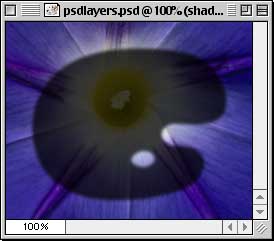
there are several to choose from. Below are just a few
examples of using different blending modes on the shadow
layer:
11a. Normal
Click
Here To Continue...
|
|
|
|
|
| |
Previous
Home
Contact Mike
Related Sites
Next
Copyright
© 1998-2016 Mike Doughty, All Rights Reserved Legal
Notices
Page Last Revised: October 26, 2016
Privacy Policy
|
|
|
|
|
|
|
|