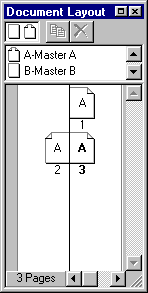
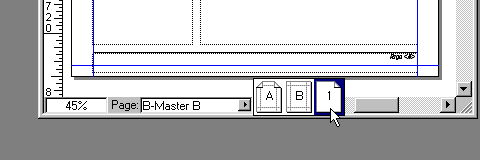
6. This is what the Document palette looks like after
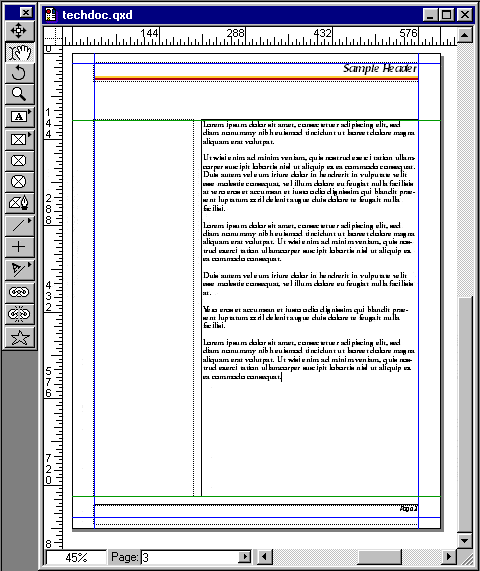
loading the text file. Two things have changed. First,
Quark™ adds the necessary pages automatically when
you setup the document to use an automatic
text box. Second, the last page is now the current
page of the document. In this case it is page three.
You can tell by the the bold letter "A" and
number "3" below the page three icon in the
palette. Yours may be different depending on the amount
of text saved in the file or by differences in your
system.
As you make changes to the body copy (the "story"),
Quark will continue to add pages as necessary.



 ,
click once in the main text box.
,
click once in the main text box.