66. Enter the following width and height coordinates
in the Measurements palette. Note that we haven't determined
the y-coordinate yet.
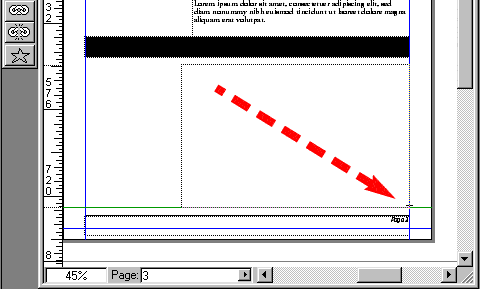
67. Drag a new rectangle approximately in the location
shown using either the Rectangular Picture Box tool
or the Rectangular Text Box tool. Then click Item
> Content > None.
68. Enter the following width and height coordinates
in the Measurements palette then drag the box until
it snaps into the guides in the lower right-hand corner.
Tip:
The Item tool is used to move an item.
The Content tool is used to move an item's contents.
If the Content tool is selected press Ctrl-drag
(Windows®) or Cmd-drag (Mac®) to move the
item.
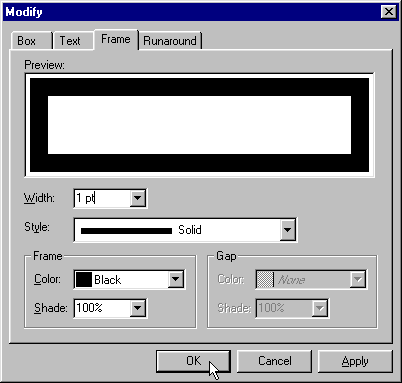
69. Click Item > Modify or double-click the
new box with the Item tool. In the "Frame" tab,
select a solid black outline, 1 point wide.
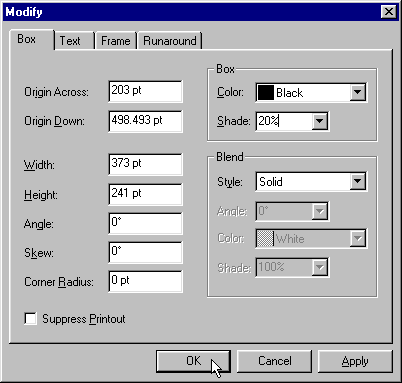
70. In the "Box" tab choose a black box color
with a 20% tint. Click "OK" to close the dialog.
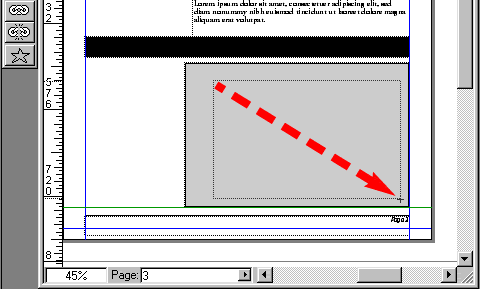
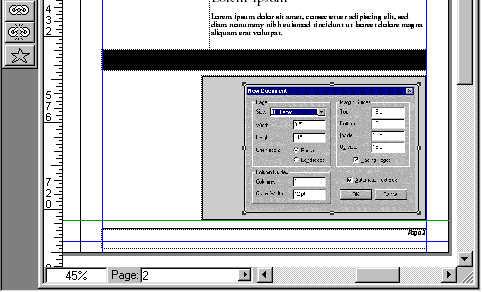
71. Using the Rectangular Picture Box tool, drag a new
picture box inside the gray box.
72. Click File > Get Picture. Navigate to the
folder containing your images and select "screenshot.eps".
In the Measurements palette, enter 75% in the x and y
scale values.
73. Move the black box and the picture box into the following
arrangement. Note that this can and should be done by
eye. The black box is a banner for some reversed type
which will be placed in front of it. It should snap to
the left and right margins so it should have an x-coordinate
of 36 points and a width of 540 points. You will only
be moving it up or down.