Studio 1 Web Design
Visit our partner site where we offer logo
design, Los Angeles web design and
search engine optimization services.
  Web Design   Web Hosting   Photoshop Tutorials   Free Fonts   Featured Clients   Book Store  
 
Photoshop Tutorials - Free Fonts
[Home]
[Store]
[Search]
[Sitemap]
[Newest Pages]
[Read Me First!]
[Photoshop Tutorials]
[Canvas Tutorials]
[Corel Tutorials]
[Quark Tutorials]
[Illustrator Tutorials]
[FreeHand Tutorials]
[Drawing Basics]
[Porting Files]
[Free Fonts]
[Font Tutorials]
[Misc Tutorials]
[Animation]
[About Mike]
[Guestbook]
[Gallery]
[Related Sites]
[Resource Directory]
[Add Your URL]
[Downloads]

 
California Home Loans
Hard Money Lenders
Laser Hair Removal
Mailing Lists
Mesotherapy
Private Money Loan
 
    Intermediate  
 
  Canvas 6™ Technical Manual Project
Part 4A - Output The Document
  Buy Canvas Software!
Books on Canvas
Canvas Training CDs

Return To Technical Manual Project Index

In this tutorial we will be using Adobe® Acrobat® Distiller® to output the file as a PDF document. It is not necessary to use Distiller to create a PDF. Canvas has built-in PDF support through the File > Save As command. In this case we will be using the File > Print command to output the file. In the screen shots below,
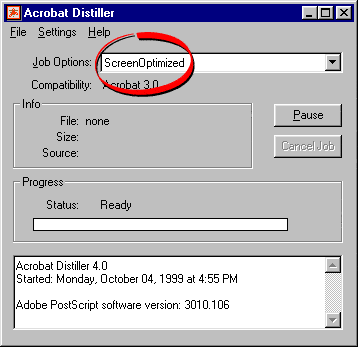
the circled areas are where the defaults will be changed.

1. Start by launching Distiller. In this case we will be using version 4.0. It comes with several preset job options. You can use one of them as a basis for creating your own custom job options. Choose "ScreenOptimized" from the pulldown.

pdfprep01.gif

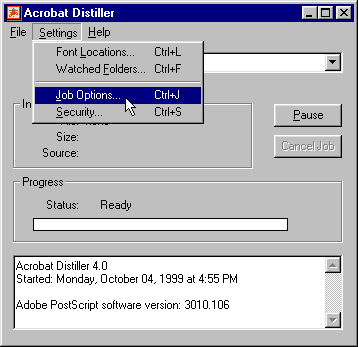
2. Click Settings > Job Options.

pdfprep02.gif

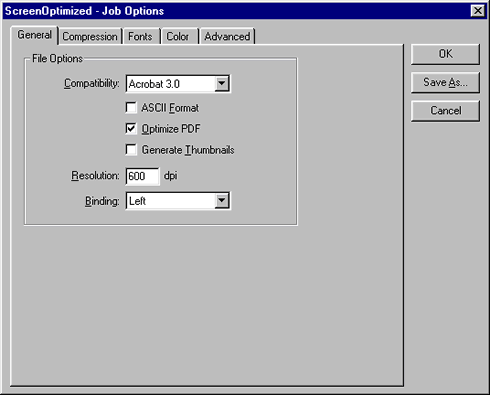
3. There are five tabs in the dialog. In the "General" tab, use the defaults.

pdfprep03.gif

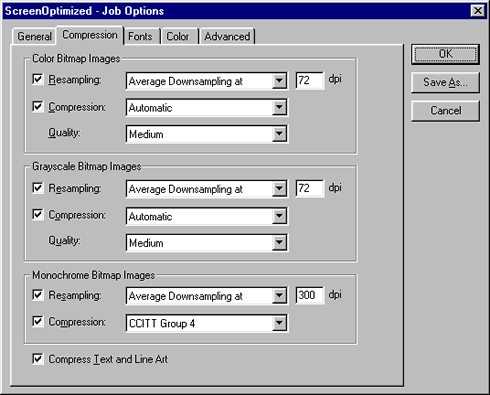
4. Also use the defaults in the "Compression" tab.

pdfprep04.gif

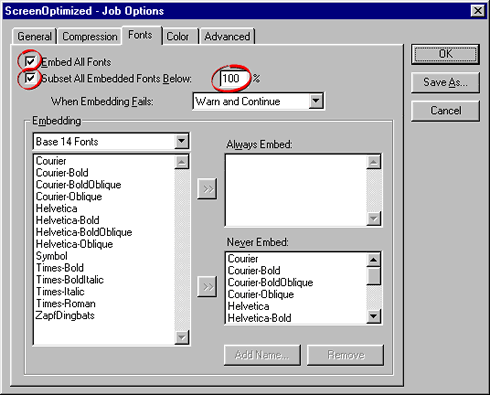
4. In the "Fonts" tab I like to choose "Embed All Fonts" and "Subset All Embedded Fonts Below" - 100%. This will ensure that no fonts will be missing from the PDF file and by subsetting everything the file will be as small as possible. Only the actual characters used in the document will be embedded and nothing more.

pdfprep05.gif

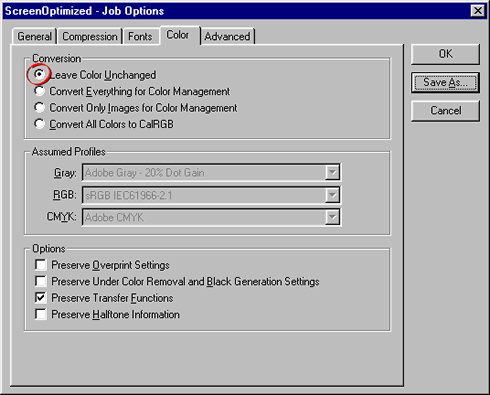
5. In the "Color" tab check the box to "Leave Color Unchanged". I do this to prevent colors from being translated to RGB in a CMYK job.

pdfprep06.gif

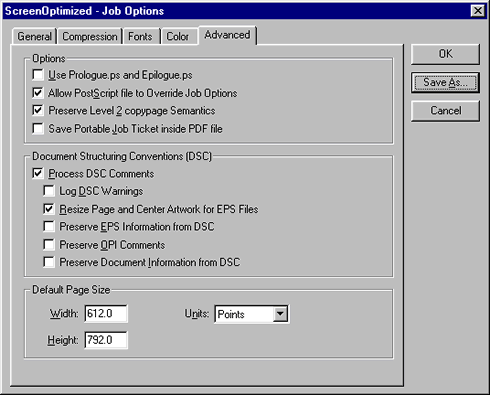
6. Use the defaults in the "Advanced" tab.

pdfprep07.gif


Click Here To Continue...

 
  Previous   Home    Contact Mike   Related Sites    Next Copyright © 1998 - 2007 Mike Doughty, All Rights Reserved Legal Notices
Page Last Revised: October 14, 2007
Privacy Policy


Hard money lenders can arrange a private money loan or hard money loans with fast approval!