|
|
Defringing
Unwanted Halos In Photoshop®
Part One |
 |
|
|
|
|
|
|
This tutorial will detail an example of how to use
the "Defringe" command in Adobe®
Photoshop. This handy feature removes unwanted halos
that may occur in an image with a transparent background.
Many times you will find images where white is used
as a background matte color (more
here on using a background matte color). The image
will display perfectly over a white background but not
over a colored background. If you want to change the
background, you need to defringe the image.
In this example, we will be using clip art photos from
the CorelDRAW® 8 and CorelDRAW
9 graphics suites. They were opened in Corel PHOTO-PAINT®,
then exported as Photoshop PSD files.
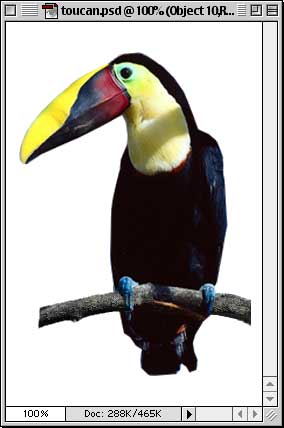
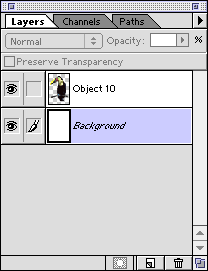
1. Shown below on the left is a view of an image of
a toucan as it appears in Photoshop. On the right is
a view of the Layers palette. The palette reveals that
there are two layers, one of which is the image of a
toucan on a transparent layer and the other is an opaque
white background layer. As you can see the image looks
good over a white background. The background layer is
the active layer because it is highlighted in the Layers
palette.
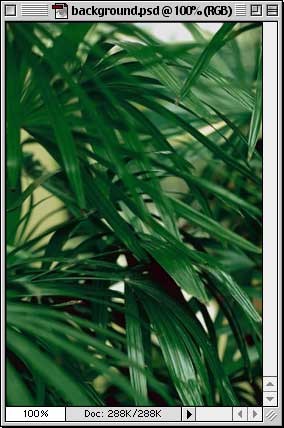
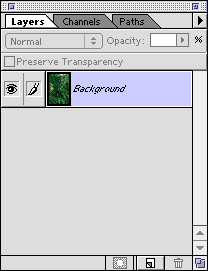
2. The second photo was selected to be used as a new
background. It is the same size as the toucan image
- 256 x 384 pixels. Again, the image on the left is
a view of the opened photo in Photoshop, and the image
on the right is a view of the Layers palette.
Click
Here To Continue...
|