|
|
| |
|
|
 |
| |
| |
|
Intermediate |
|
| |
|
|
Porting
Fonts Across Platforms:
Number 8C |
 |
|
|
|
|
|
|
Porting Mac® Type 1 Fonts To
The PC With PC TransType
Click here
for more on working with TransType
Click here
for legal note on fictitious font name used in this
tutorial
7. Let's backtrack a little and do a proper
conversion. Clear the Mac printer font from the TransType
window by clicking the "Clear" button (circled
below).
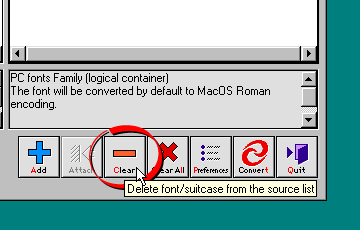
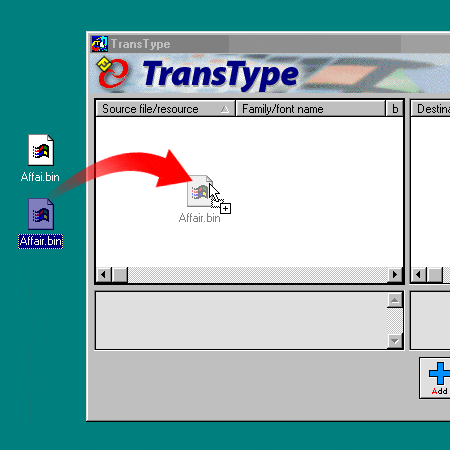
8. This time drag and drop the Mac suitcase
file into the TransType window.
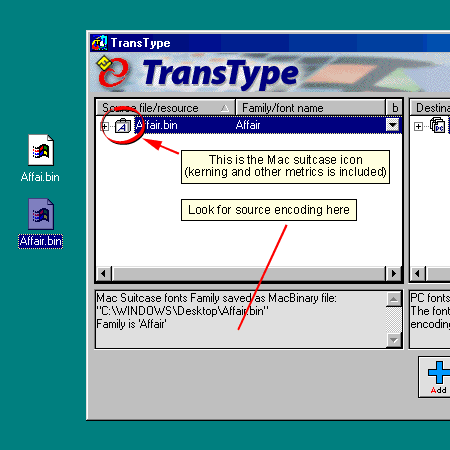
9. This time the Mac suitcase has been
dropped into the TransType window (suitcase icon circled
below) so we know that the metrics will be included
in the conversion. Next we need to check the encoding.
It is unclear from the input specifications in the legend
panel that TransType can detect the source encoding
(below). This is because the font is inside the Mac
suitcase. We'll have to open it and look inside (next
step). More here
on TransType's font input and output specifications.
Click
Here To Continue...
|
|
|
|
|
| |
Previous
Home
Contact Mike
Related Sites
Next
Copyright
© 1998-2016 Mike Doughty, All Rights Reserved Legal
Notices
Page Last Revised: October 26, 2016
Privacy Policy
|
|
|
|
|
|
|
|
