|
|
| |
|
|
 |
| |
| |
|
Intermediate |
|
| |
|
|
Exporting
Excel® Graphics For QuarkXPress™ Documents
- Part Four |
 |
|
|
|
|
|
|
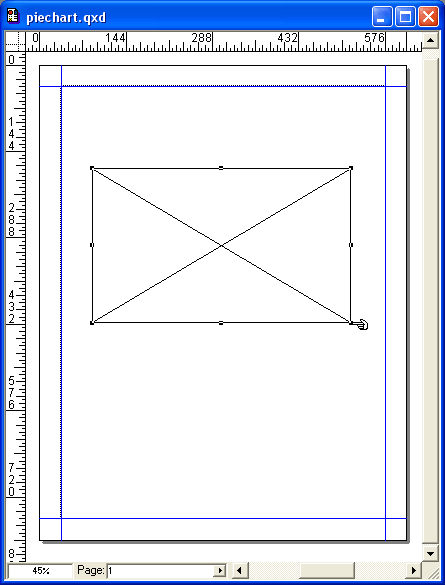
9. Now switch to QuarkXPress and open the document
where you want to place the graphic. Create a picture
box for the EPS file, then click Ctrl + E (or click
File > Get Picture).
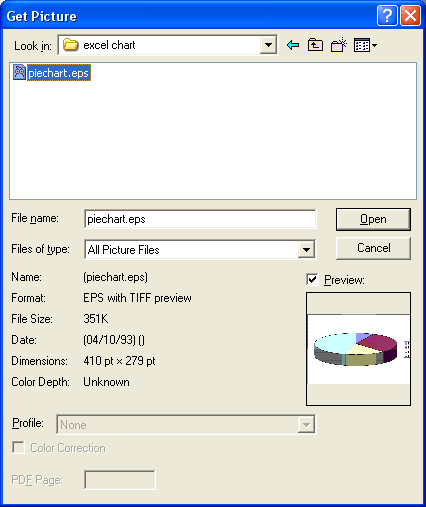
10. Navigate to the folder containing the EPS file
saved in a previous step and select it.
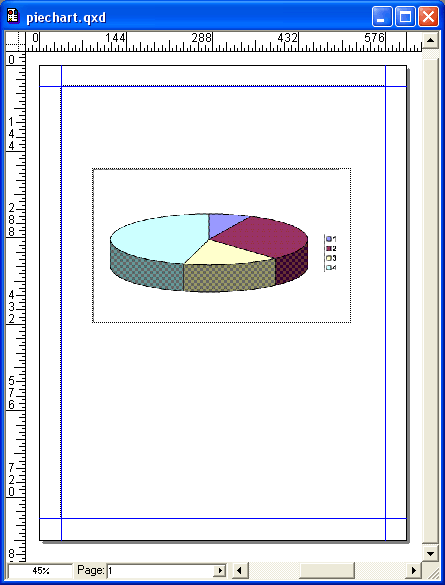
11. The pie chart is placed in the Quark picture box
where you can position it and scale it. You can scale
it up or down with no loss of quality because it is
a vector EPS file. More on the
vector format here.
|
|
|
|
|
| |
Previous
Home
Contact Mike
Related Sites Next
Copyright
© 1998-2016 Mike Doughty, All Rights Reserved Legal
Notices
Page Last Revised: October 26, 2016
Privacy Policy
|
|
|
|
|
|
|
|
