Studio 1 Web Design
Visit our partner site where we offer logo
design, Los Angeles web design and
search engine optimization services.
  Web Design   Web Hosting   Photoshop Tutorials   Free Fonts   Featured Clients   Book Store  
 
Photoshop Tutorials - Free Fonts
[Home]
[Store]
[Search]
[Sitemap]
[Blog]
[Newest Pages]
[Read Me First!]
[Photoshop Tutorials]
[Canvas Tutorials]
[Corel Tutorials]
[Quark Tutorials]
[Illustrator Tutorials]
[FreeHand Tutorials]
[Drawing Basics]
[Porting Files]
[Free Fonts]
[Font Tutorials]
[Misc Tutorials]
[Animation]
[About Mike]
[Guestbook]
[Gallery]
[Related Sites]
[Resource Directory]
[Add Your URL]
[Downloads]

 
Mailing Lists
Mesotherapy
 
    Advanced  
 
  Extracting Clipping Paths From Corel® PHOTO-PAINT® 8   Buy Graphics & DTP Software!
Books on Graphics & DTP
Graphics & DTP Training CDs

Part Three: Transfer Path from Adobe® Illustrator® to Photoshop®

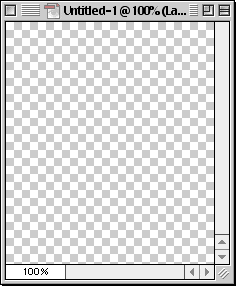
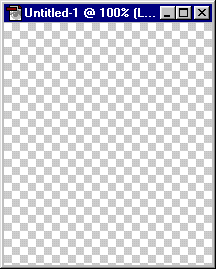
1. Open a Photoshop .PSD file or create a new one with File > New.

PC version...
clip25.gif
Mac® version...

clip25m.gif

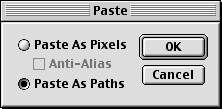
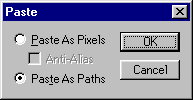
2. If you haven't previously copied the path into memory, from within Illustrator click Edit > Copy. Then within Photoshop click Edit > Paste (you must have a file open for Paste to be available). Choose "Paste As Paths" when asked.

PC...
clip17.gif
Mac...

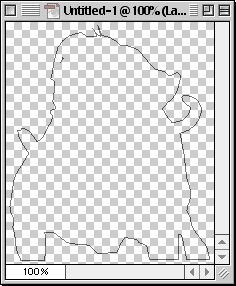
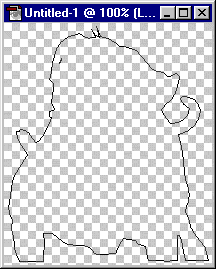
3. The path is pasted into the image.

PC...
clip29.gif
Mac...

clip29m.gif

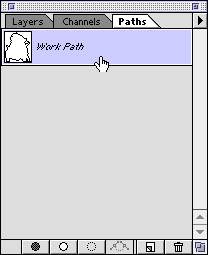
4. Now save the path with the file. First click the Paths tab on the Layers Palette, then double-click the Work Path.

PC...
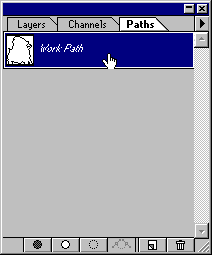
clip19.gif
Mac...

clip19m.gif

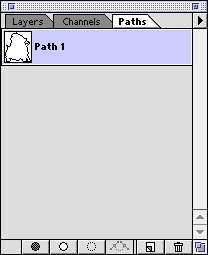
5. You have to name the path to save it with the file, the default is "Path 1". Click "OK".
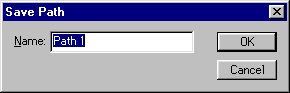
clip20.gif

6. Now click File > Save to save the file.

PC...
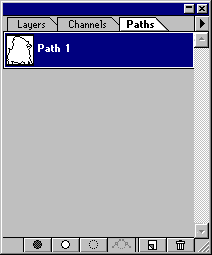
clip21.gif
Mac...

clip21m.gif


Click Here To Continue...

 
  Previous   Home    Contact Mike   Related Sites    Next Copyright © 1998 Mike Doughty, All Rights Reserved Legal Notices
Page Last Revised: March 27, 2009
Privacy Policy